Set Up Lyft Business Concierge for SeatMax
Step by step: sign up for Lyft Business, apply for Concierge, add a payment card, and create the program SeatMax books your Riders’ Lyft rides through.
Why connect Lyft Business
With a Lyft Business Concierge program connected, SeatMax books each car for your group and Lyft bills your company card directly. Your Ride Captains never pay and never file an expense report.
Without one, Lyft events still work: the Ride Captain books the ride in their own Lyft app and submits the receipt.
Allow time for this. Lyft reviews every Concierge application, so start a few days before your event.
Step 1: Sign up for Lyft Business
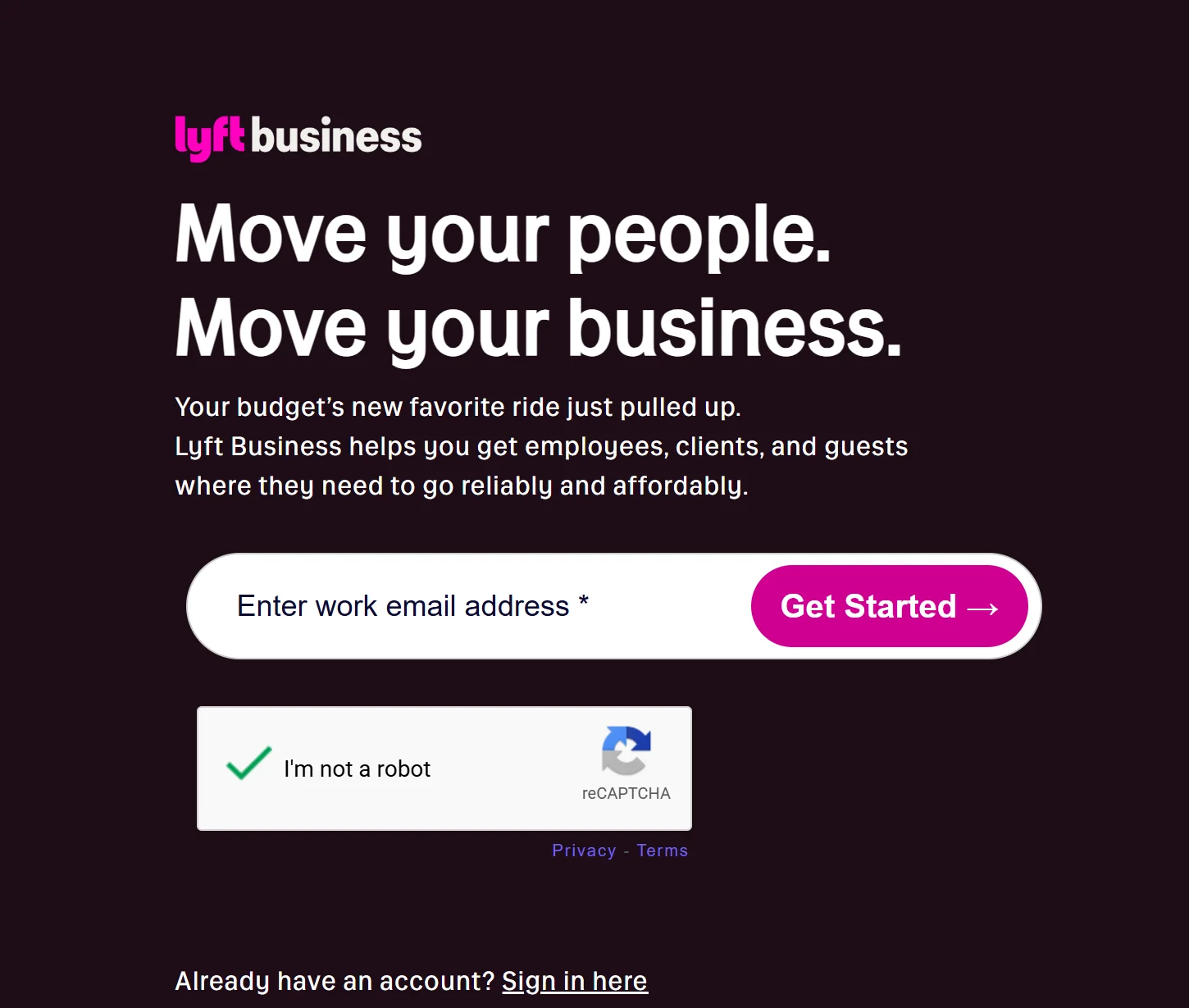
Go to go.lyftbusiness.com, enter your work email and click Get Started. Already have a Lyft Business account? Click Sign in here at the bottom instead.
Step 2: Apply for Concierge
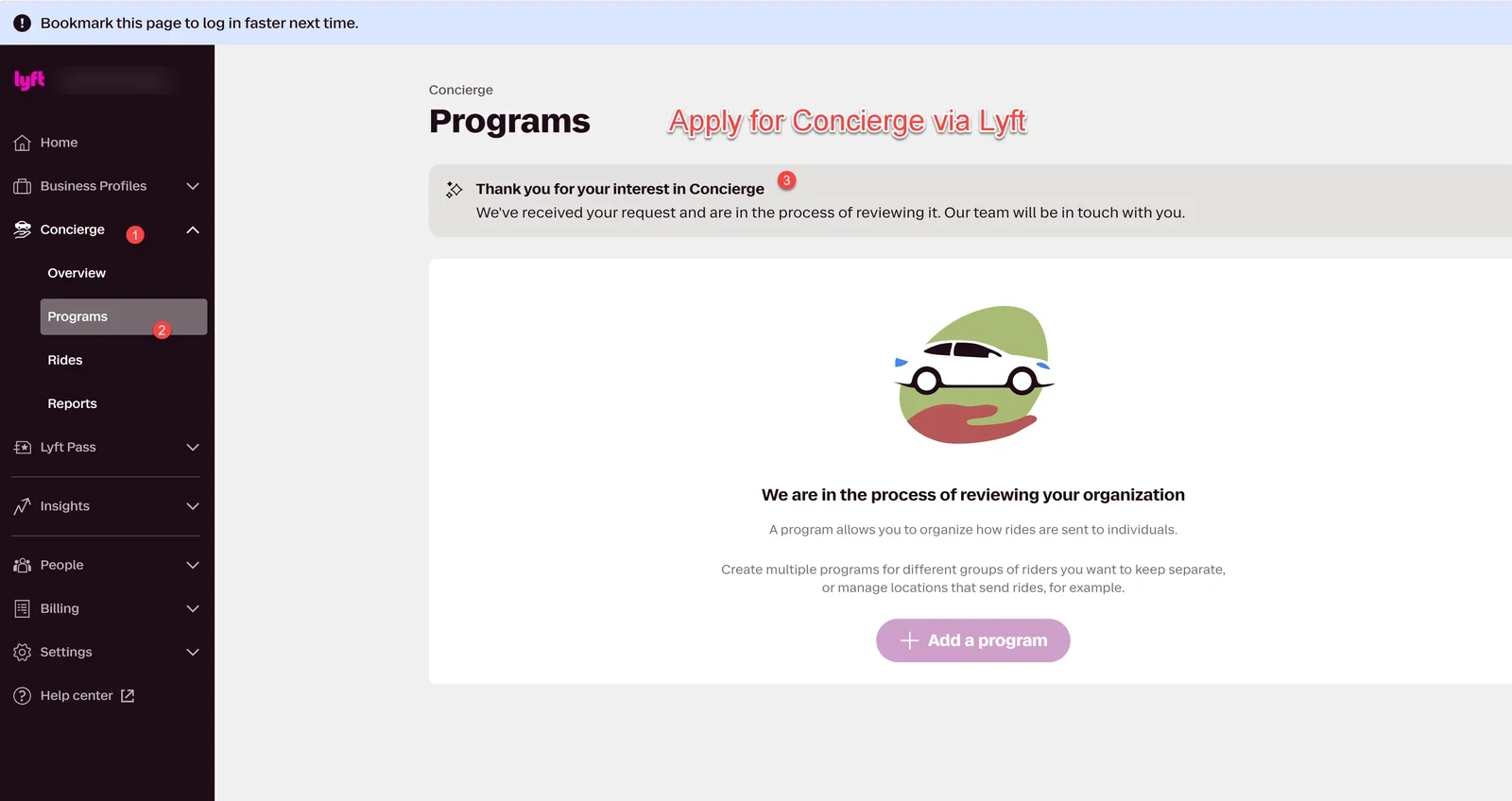
In the left menu, open Concierge and click Programs. Request Concierge access. Lyft shows "Thank you for your interest in Concierge" while it reviews your organization, and its team will contact you.
You can't add a Concierge program until Lyft approves you. Do Step 3 while you wait.
Step 3: Add your payment card
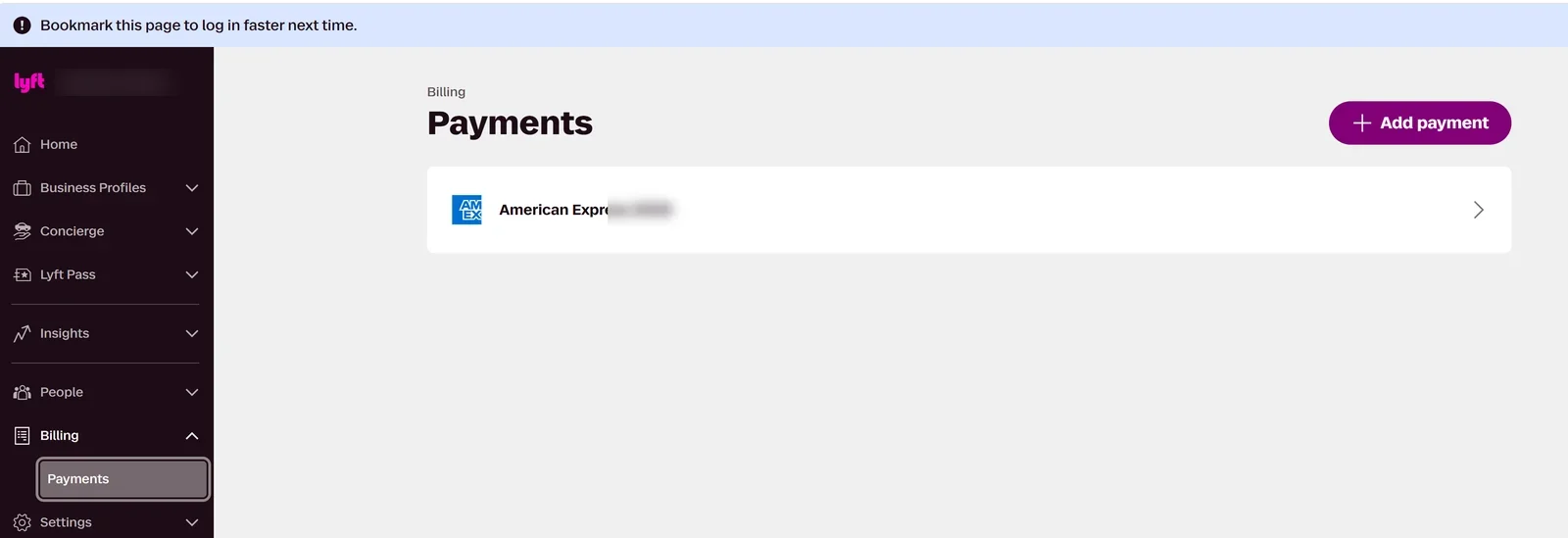
Open Billing → Payments and click Add payment. This is the card Lyft charges for your Riders’ rides. Add it now so it’s ready when your program goes live.
Step 4: Create a Concierge program
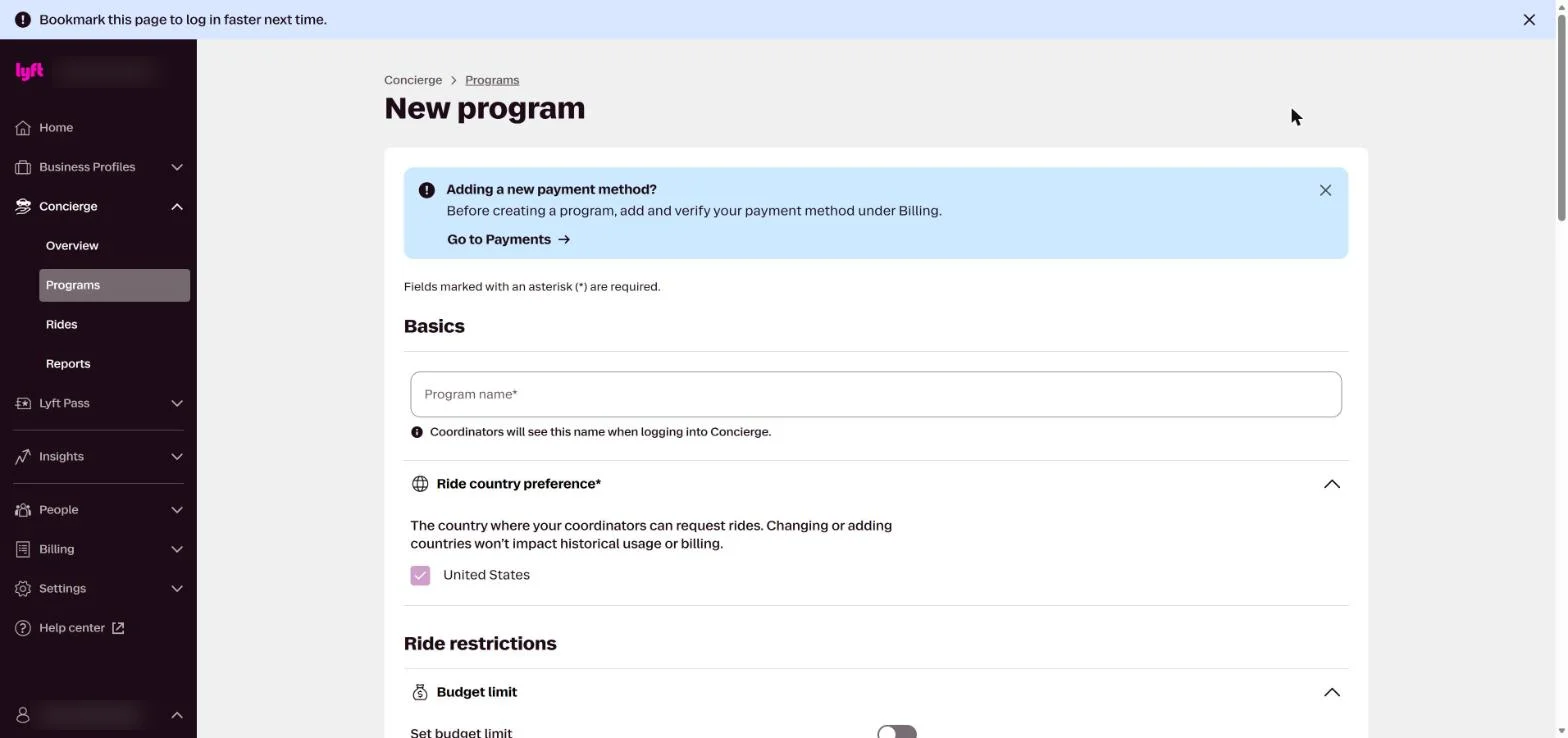
Once Lyft approves you, open Concierge → Programs and click Add program. Give it a name your coordinators will recognize, such as "SeatMax Rides".
Use a Concierge program, not a Business Profiles one. Only Concierge programs can connect to SeatMax.
Step 5: Set billing and publish
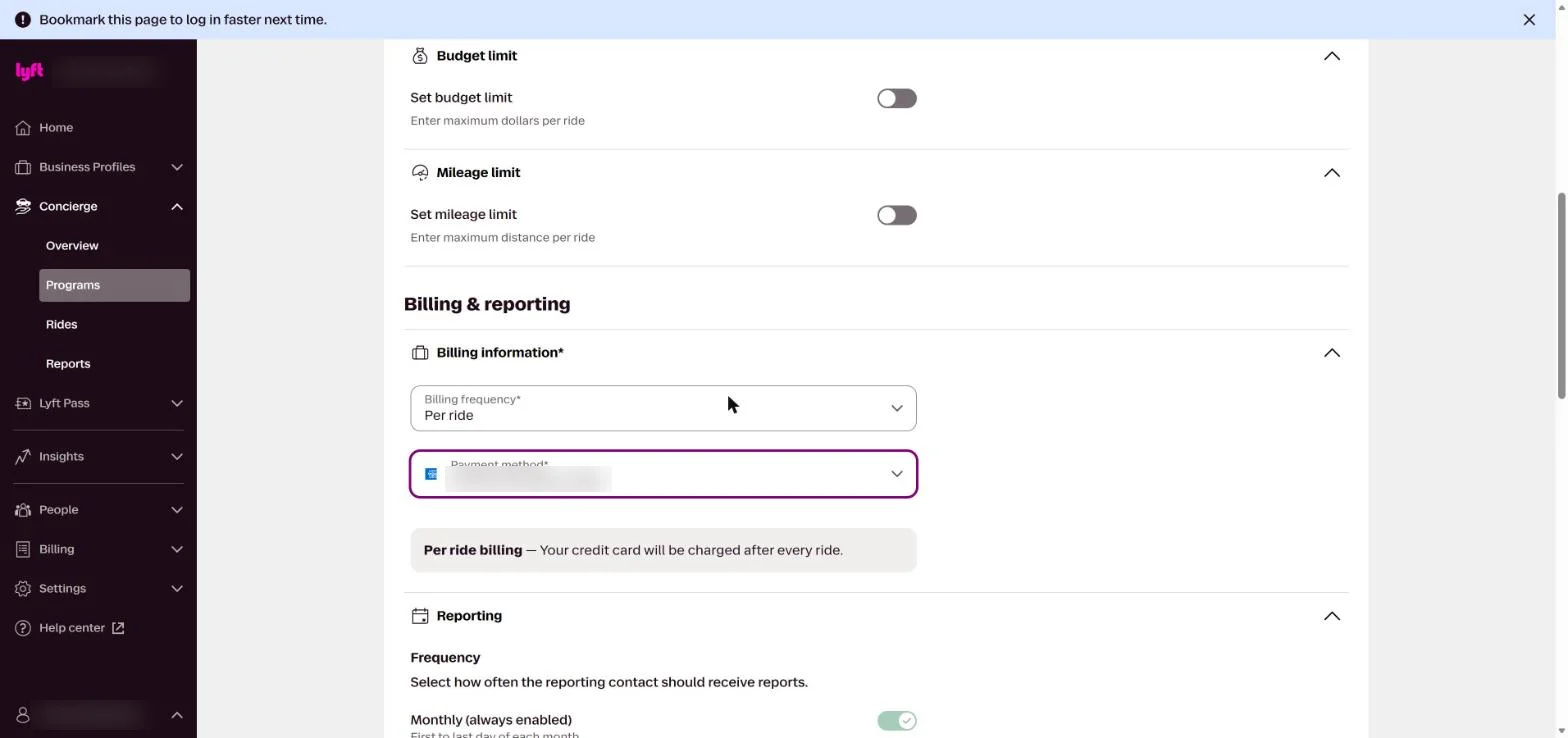
Under Billing information, keep Billing frequency on Per ride and choose the card from Step 3 as the Payment method. Budget limits, reporting and driver tips are optional.
Click Publish, then Publish again to confirm. A published program can be edited but not deleted.
Step 6: Open the API Client connection
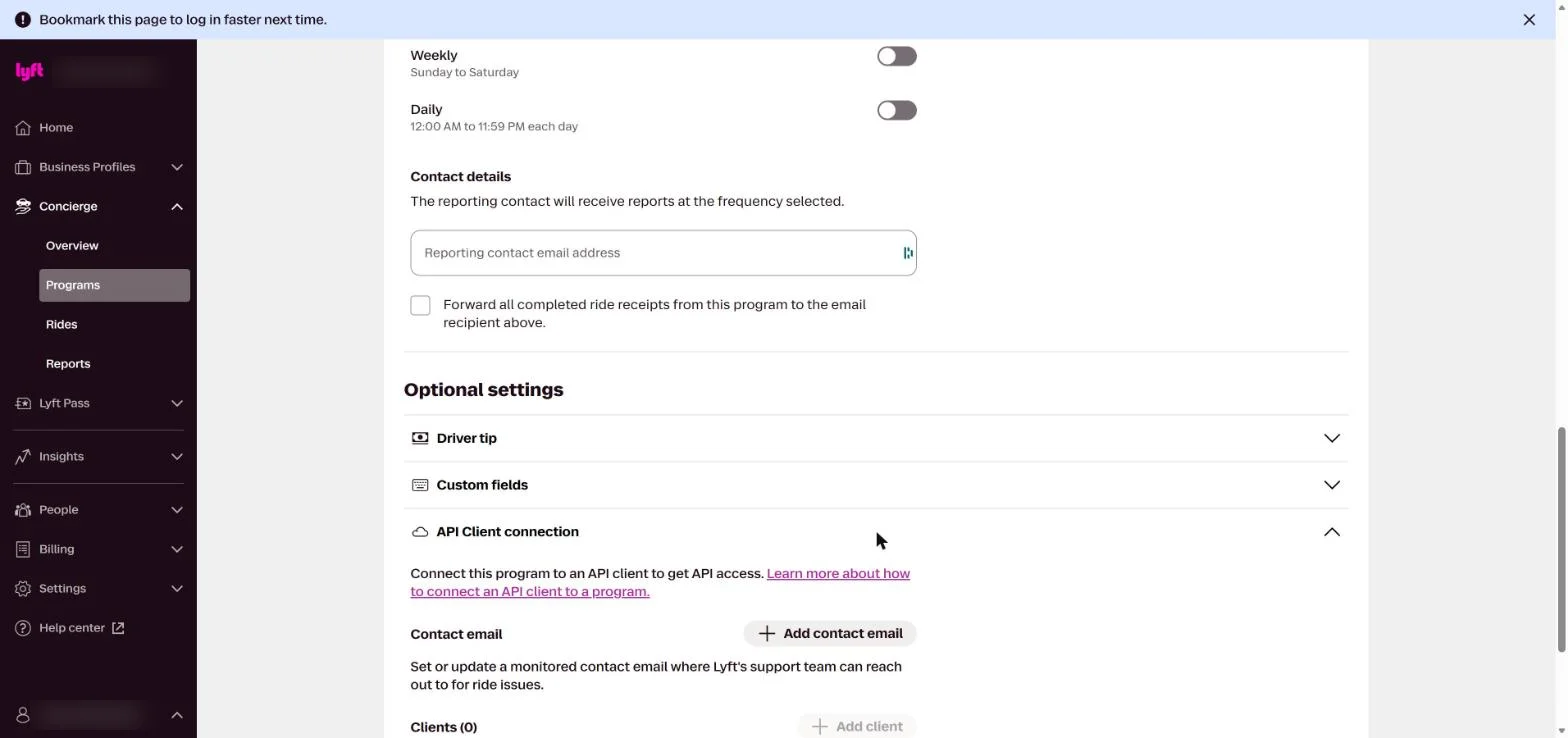
On your new program, click Edit program and scroll to Optional settings → API Client connection. This section only appears when you edit a program that’s already published.
Click Add contact email and enter an address Lyft’s support team can reach about ride issues. Lyft won’t let you add a client until you do.
Step 7: Add SeatMax as your API client
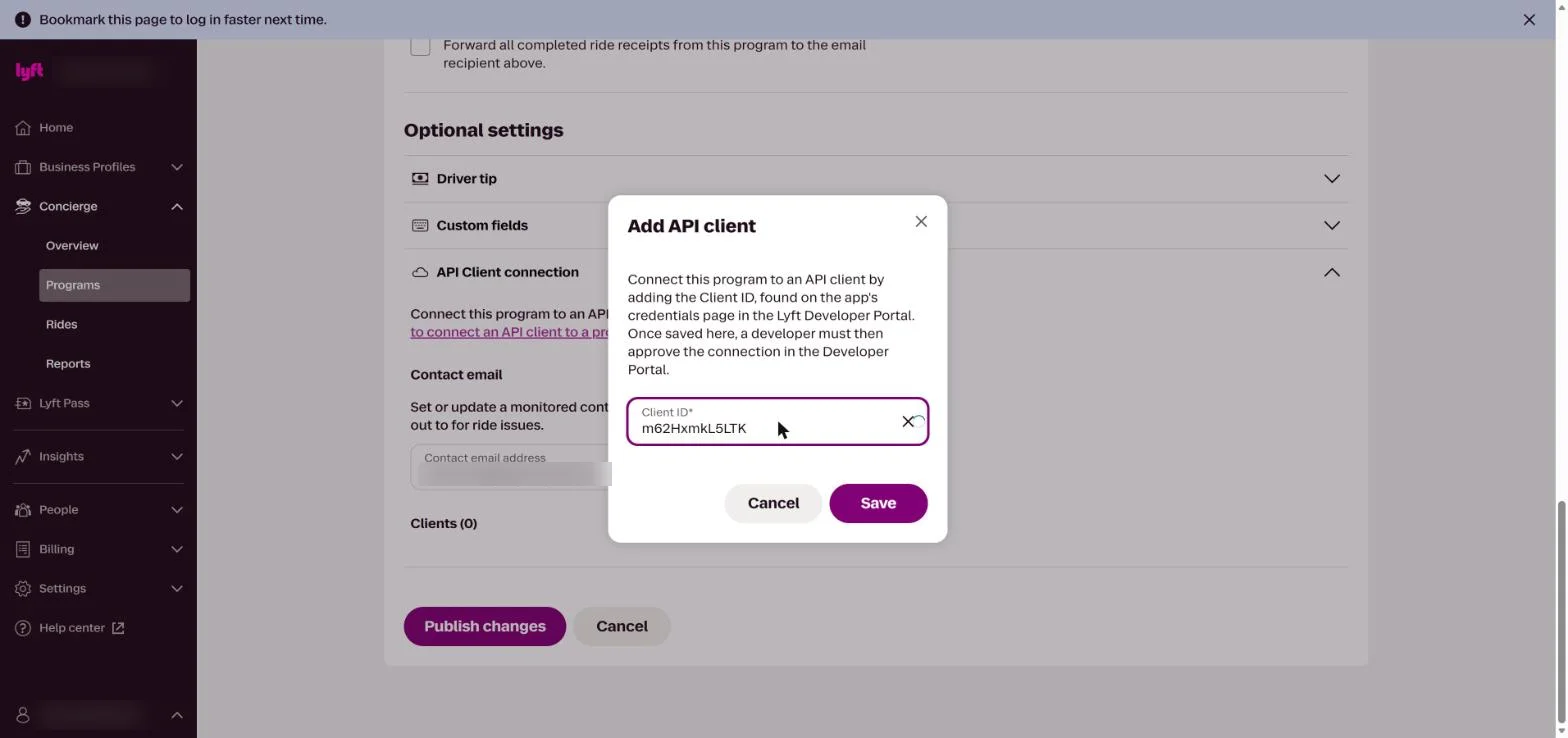
Click Add client, paste SeatMax’s Client ID m62HxmkL5LTK and click Save. It’s also on the Lyft panel in SeatMax, with a Copy button.
Step 8: Publish changes
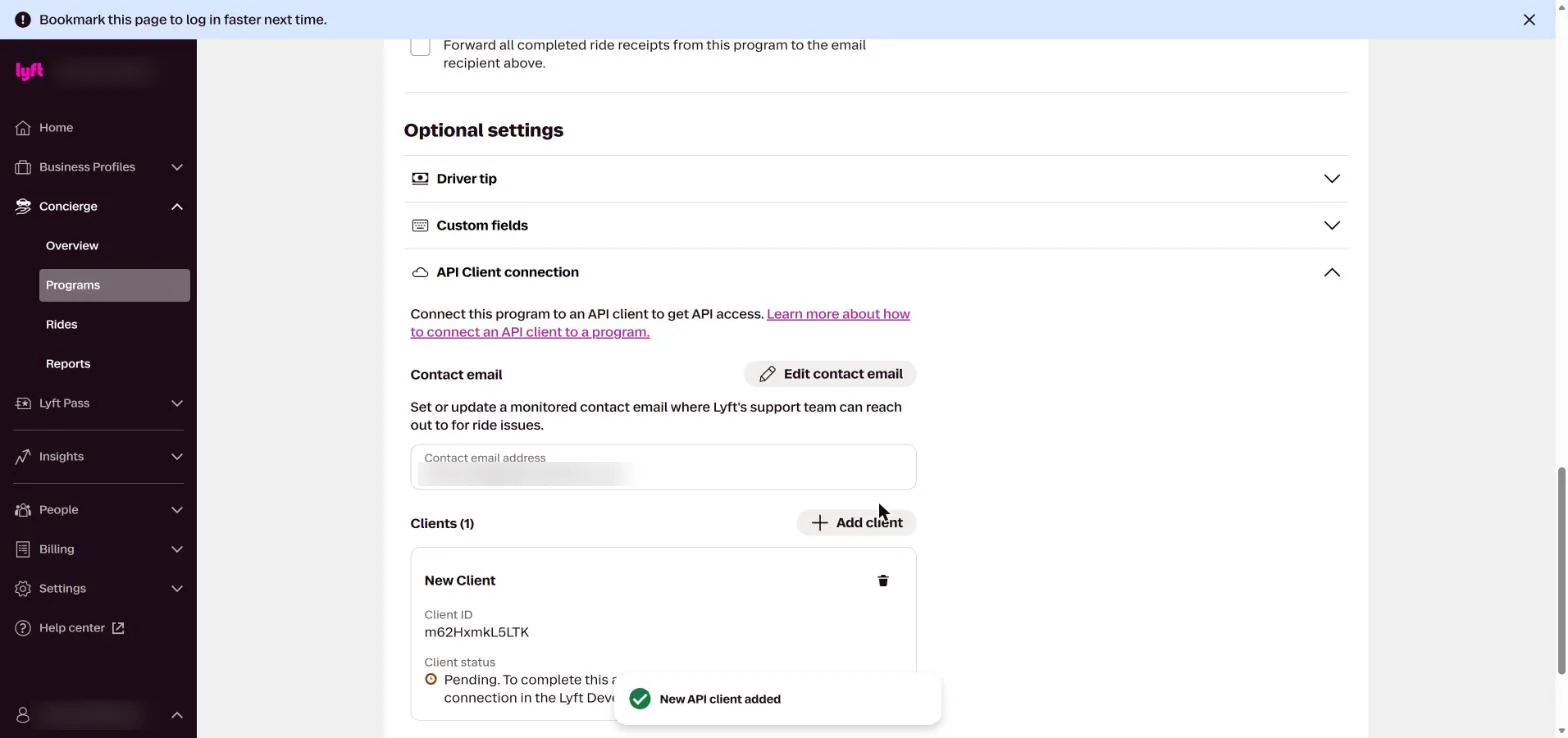
The client shows Pending until SeatMax approves the connection on our side. Click Publish changes, then confirm.
Step 9: Send SeatMax your program’s address
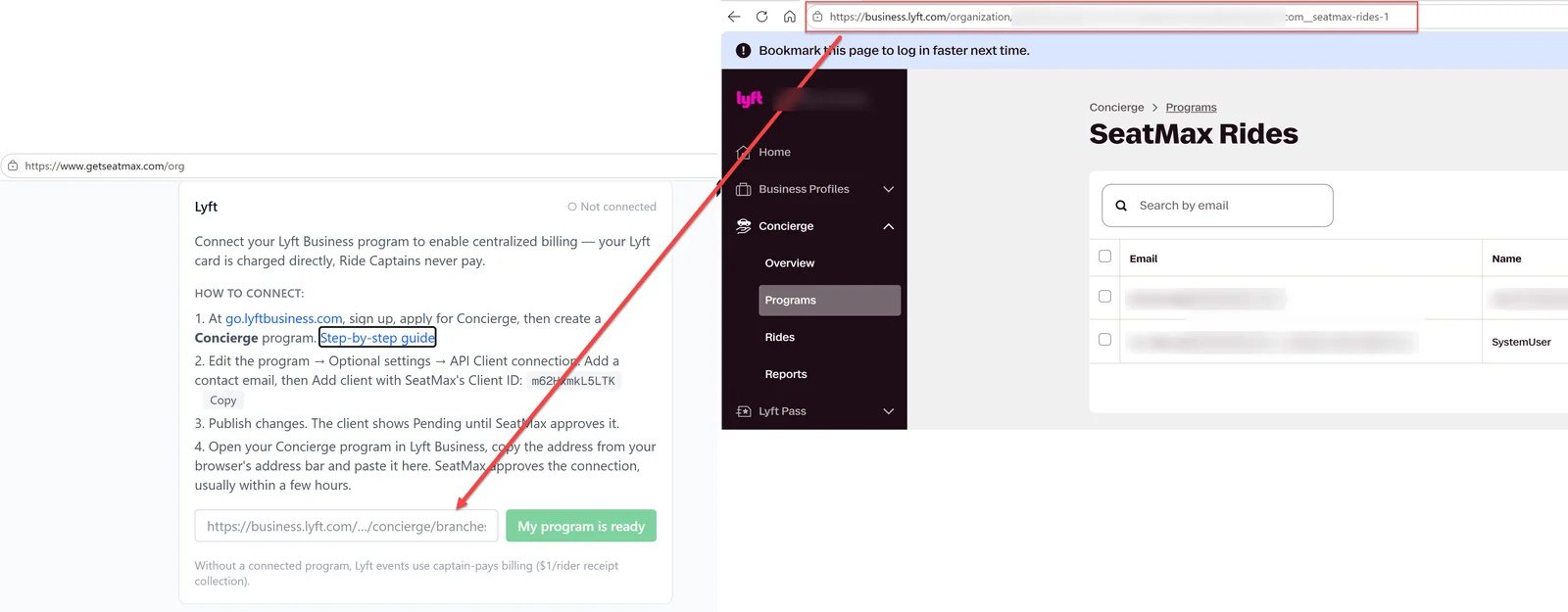
In Lyft Business, open your program (Concierge → Programs → your program) and copy the address from your browser’s address bar. It looks like https://business.lyft.com/organization/…/concierge/branches/yourcompany__seatmax-rides-1.
Back in SeatMax, go to Organization settings → Lyft, paste it and click My program is ready.
You don’t need a Program ID: Lyft only shows it to SeatMax, and the address identifies your program exactly. If you paste a Business Profiles address by mistake, SeatMax tells you. Only Concierge programs connect.
Step 10: Wait for SeatMax to approve
SeatMax approves the connection on our side, usually within a few hours. There's nothing for you to do meanwhile.
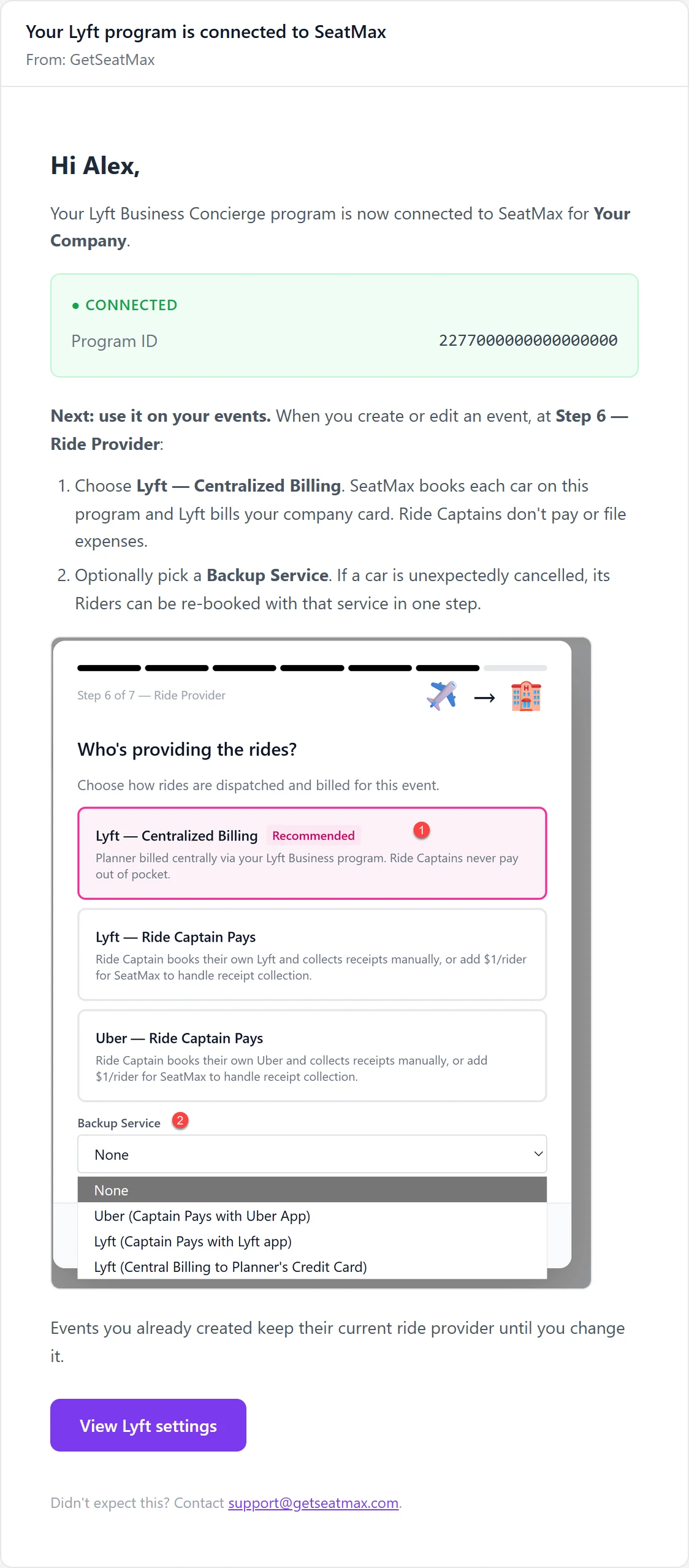
When it's done, everyone in your organization who can manage integrations gets an email: Your Lyft program is connected to SeatMax.
Step 11: Confirm it’s approved
Check both sides:
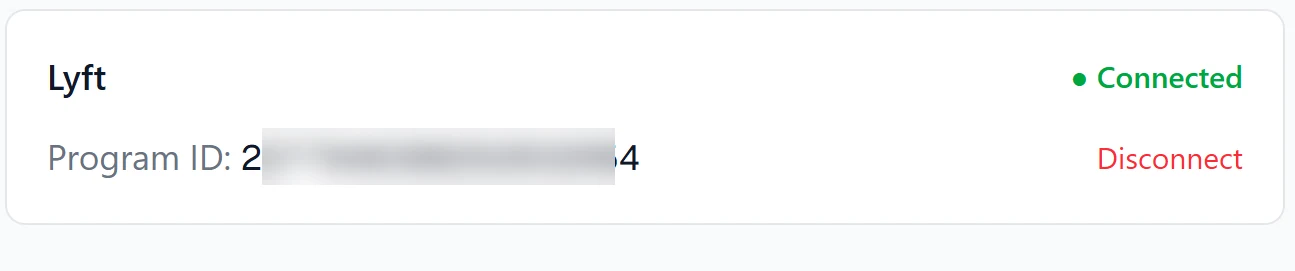
- In SeatMax: Organization settings → Lyft shows ● Connected, with your Program ID.
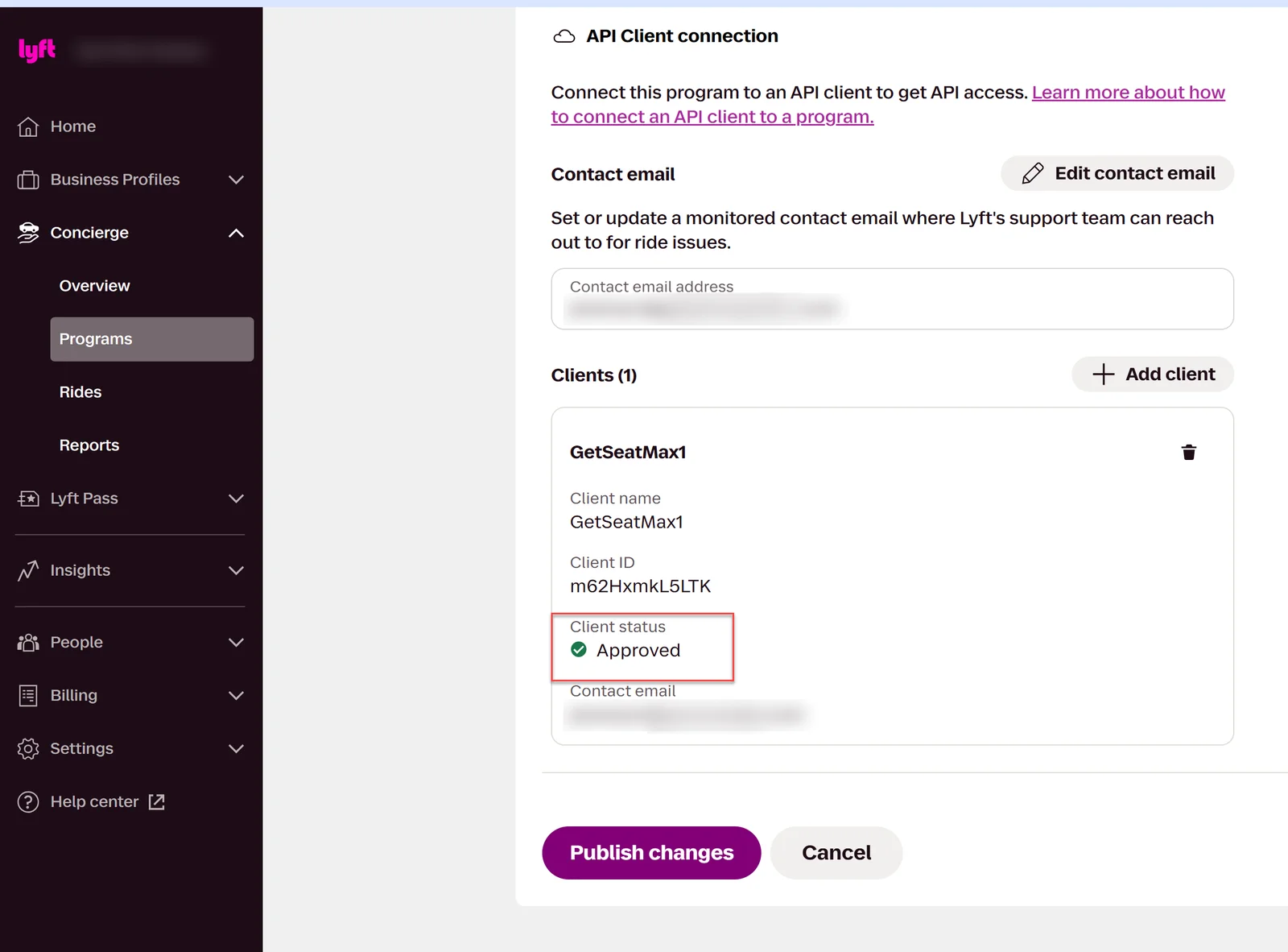
- In Lyft Business: open your program → Edit program → API Client connection. The client GetSeatMax1 (Client ID m62HxmkL5LTK) shows Client status: Approved instead of Pending. Click Cancel to leave without changing anything.
Once both say so, you can use it on your events (next step).
Step 12: Choose Lyft — Centralized Billing on your events
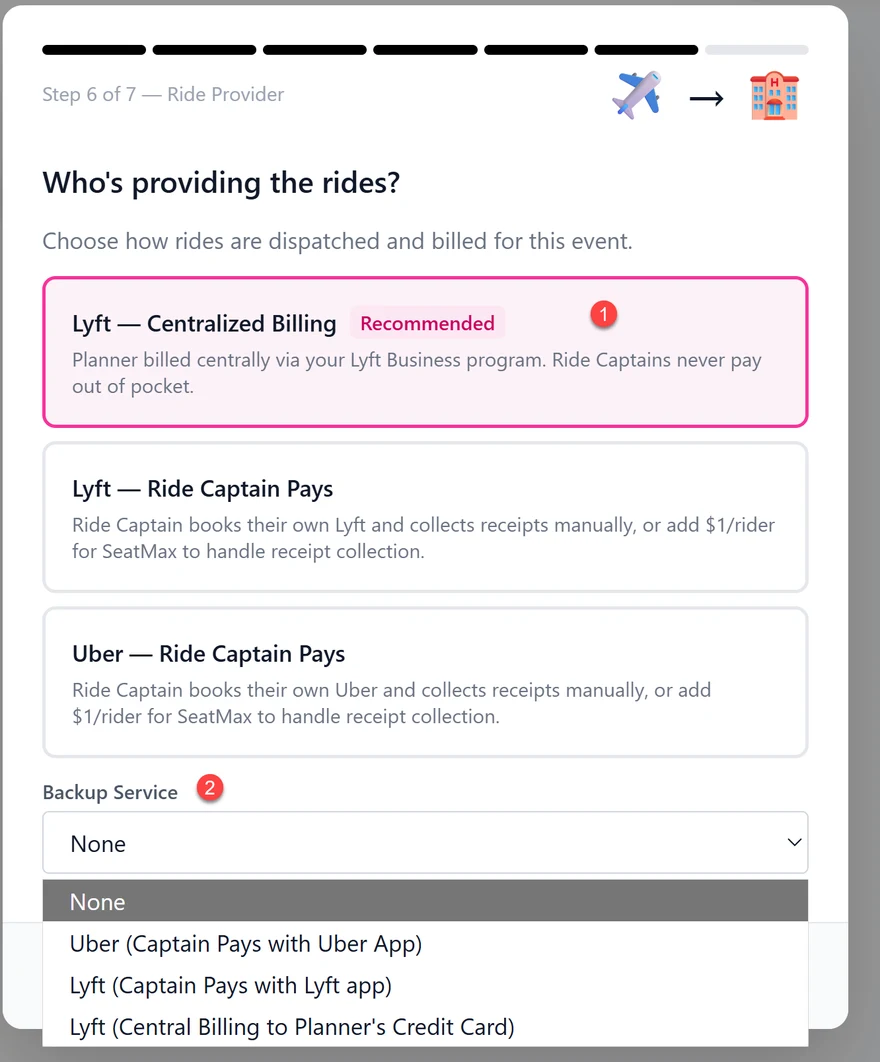
Connecting the program doesn’t change any event by itself. When you create or edit an event, at Step 6 — Ride Provider:
- Choose Lyft — Centralized Billing. SeatMax books each car on your program and Lyft bills your company card. Ride Captains don’t pay or file expenses. This option stays greyed out until your program is connected.
- Optionally pick a Backup Service: Uber or Lyft with the Ride Captain paying in their app. If a car is unexpectedly cancelled, its Riders can be re-booked with that service in one step.
Events you created before connecting keep their current ride provider until you change it.
Ready to try it?
Create your first event in under a minute. No credit card required.
Related guides
How Ride Captains Eliminate Airport Pickup Chaos
Every shared ride needs a point person. SeatMax automatically assigns Ride Captains based on configurable rules — carry-on preference, flight timing, and more.
How SeatMax Billing Works: A Complete Guide
Everything about SeatMax pricing: how savings are calculated, what gets billed, corner cases like stalled rides and auto-confirmed landings, and how to read your invoice.